> ## Documentation Index
> Fetch the complete documentation index at: https://docs.blockscout.com/llms.txt
> Use this file to discover all available pages before exploring further.
# Creating An AWS Certificate For SSL
> Optional process if you want to use SSL with your BlockScout instance
If you **do not want to use SSL**, you can disable by adding the `use_ssl = "false"` parameter to the `terraform.tfvars` file.
### To create:
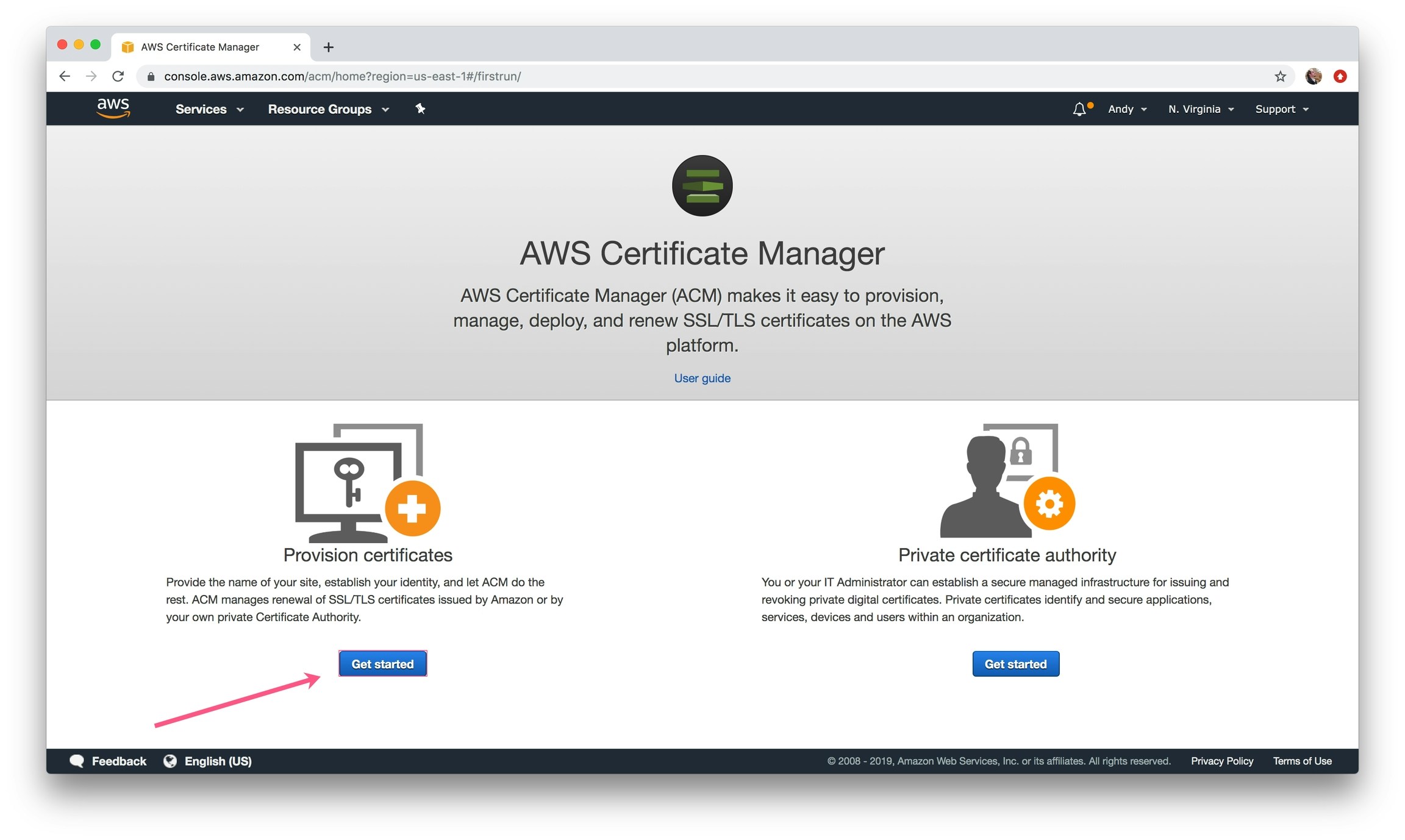
1\) Go to [https://console.aws.amazon.com/acm/](https://console.aws.amazon.com/acm/). Select provision certificates and click on get started:
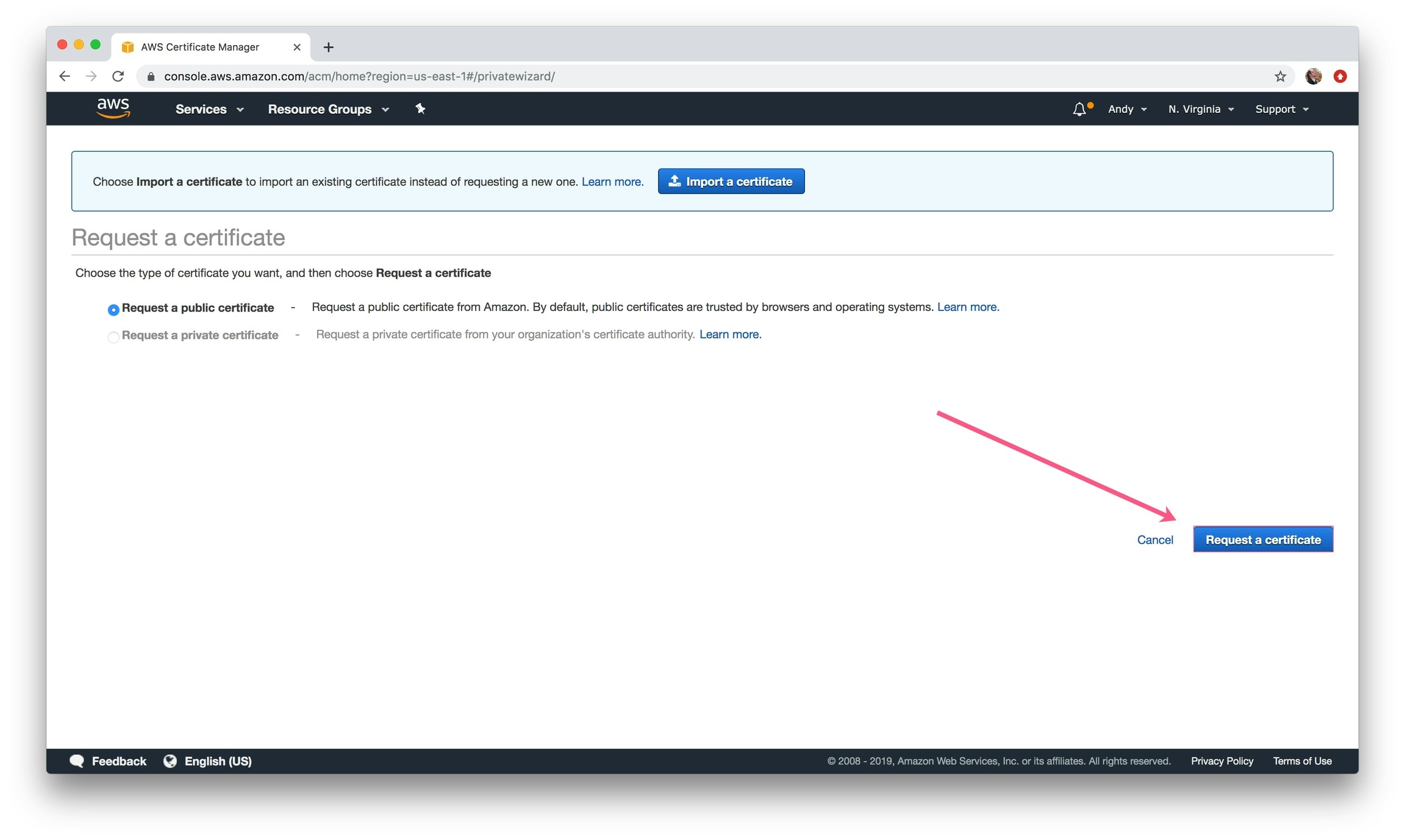
 2\) Request a Public Certificate.
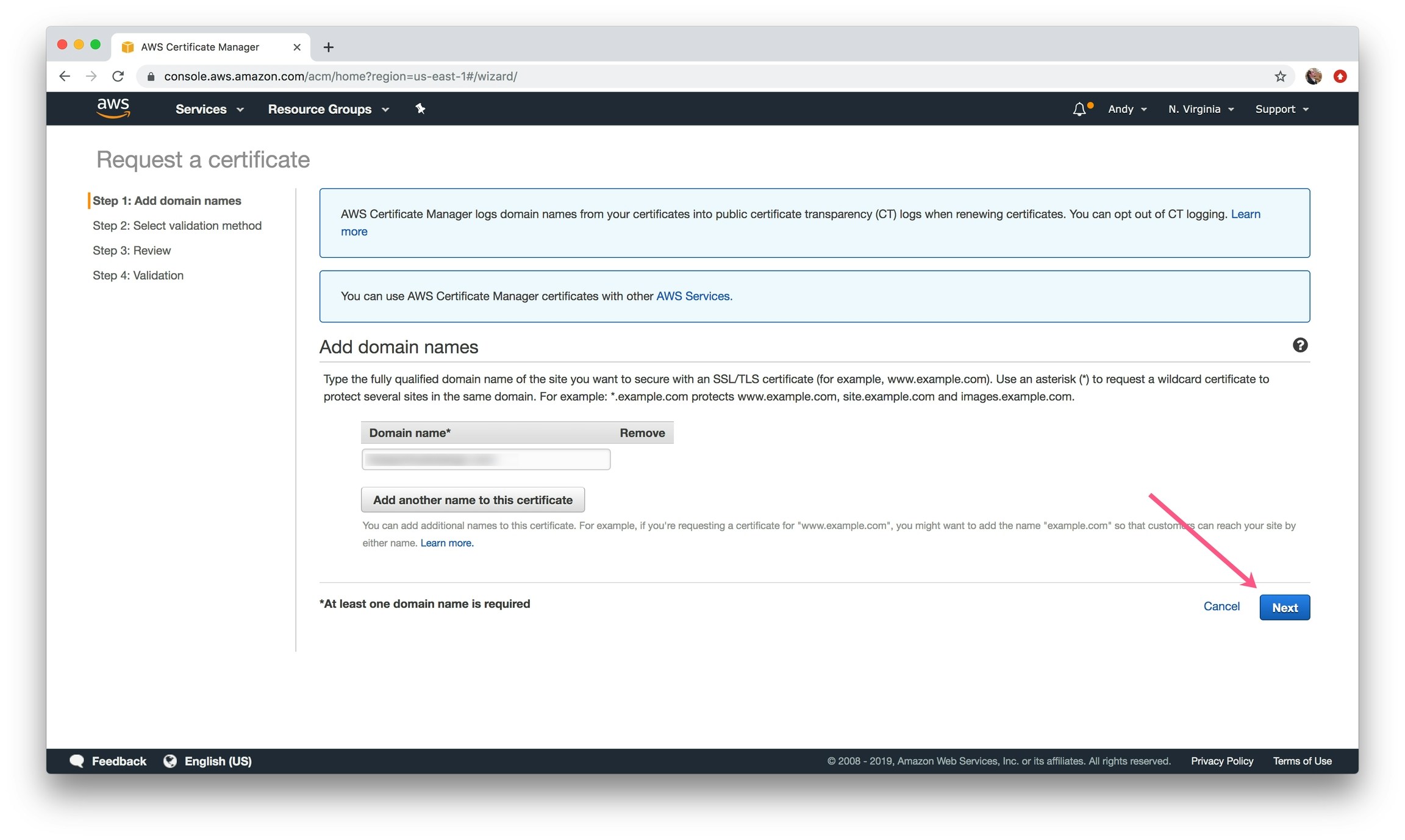
 3\) Add a domain you have access to and click **Next**.
This does not need to be the same domain for deployment - as long as it's a valid ARN on your account it will pass verification.
3\) Add a domain you have access to and click **Next**.
This does not need to be the same domain for deployment - as long as it's a valid ARN on your account it will pass verification.
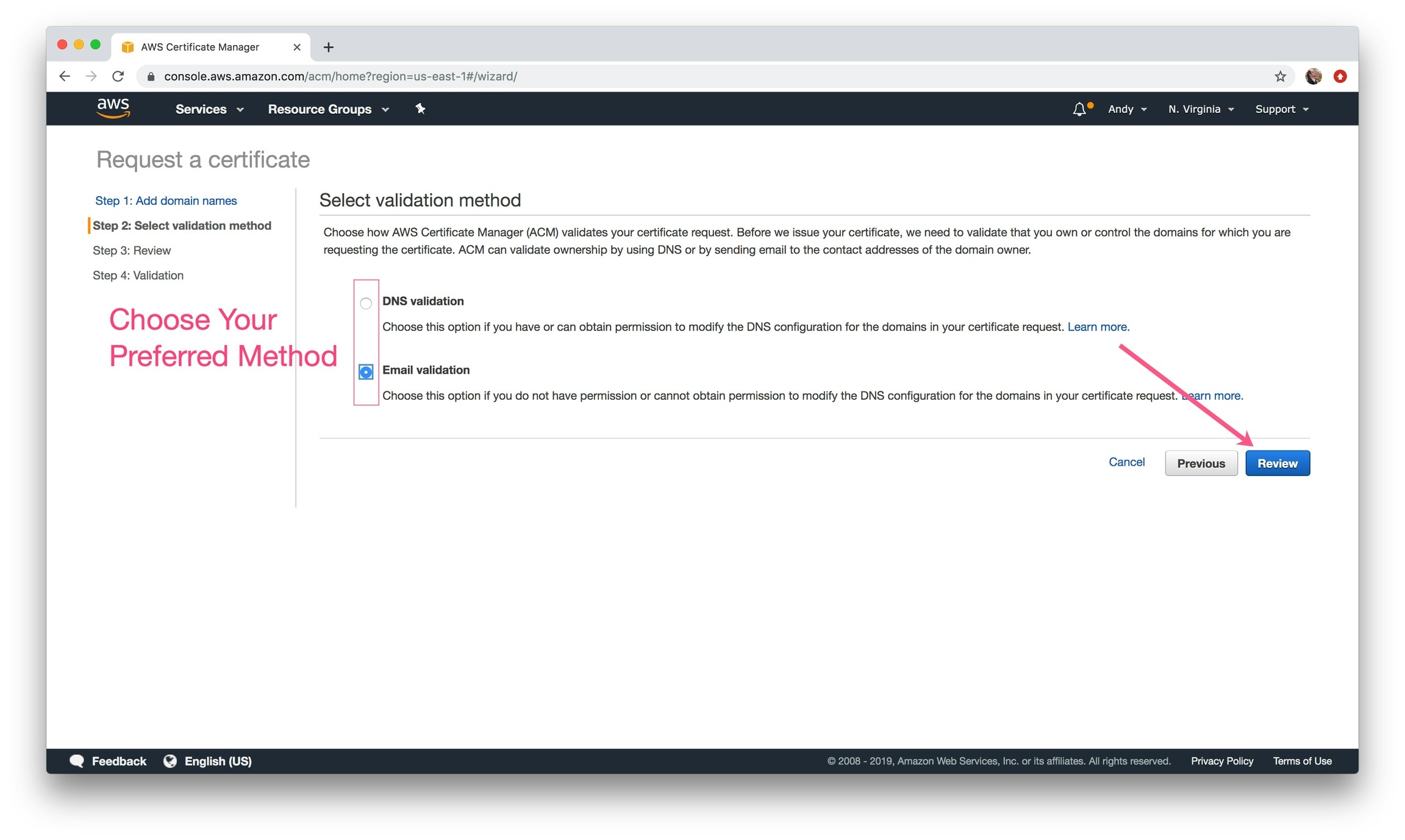
 4\) Choose your validation method (your preference) and click **Review**.
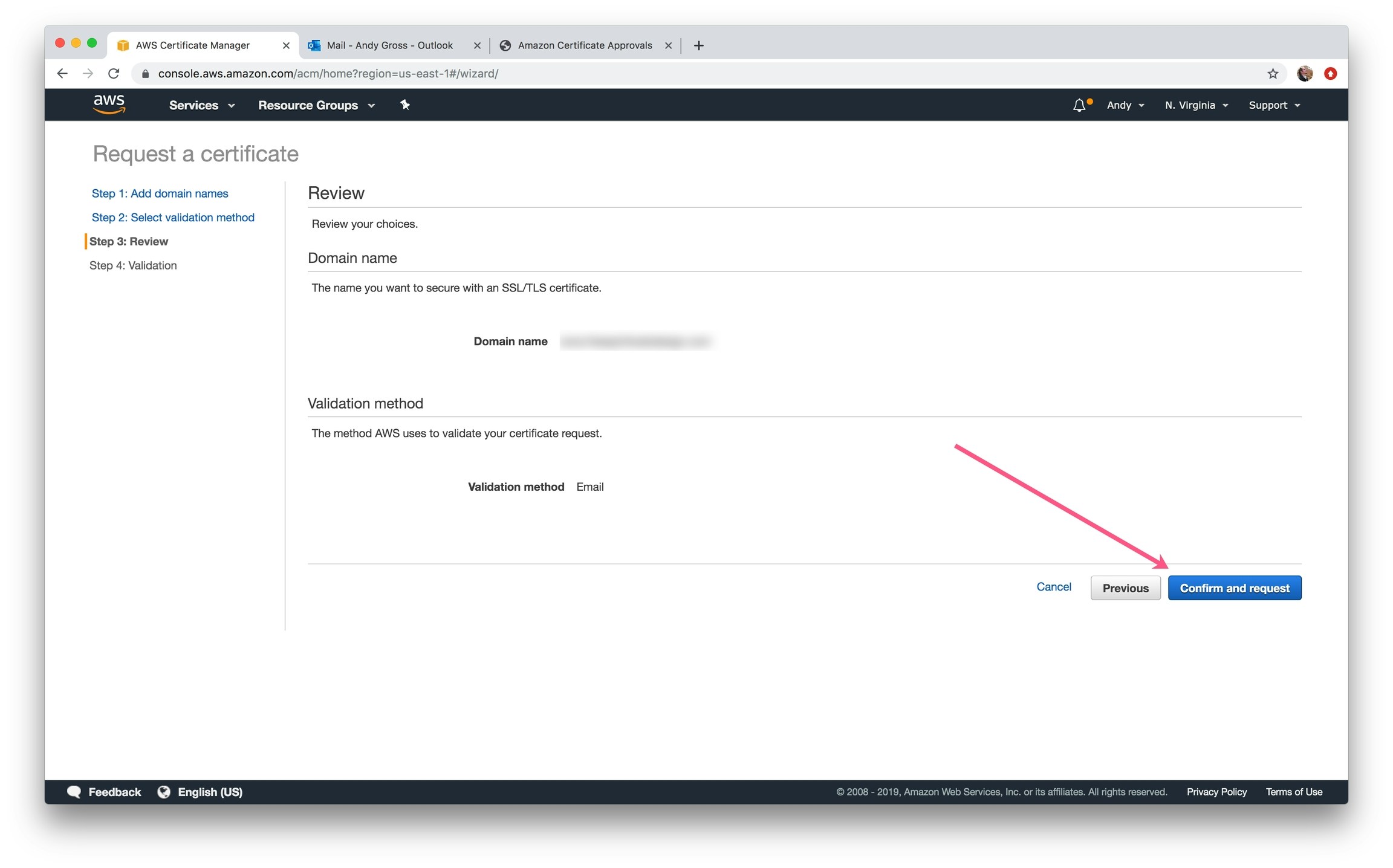
 5\) Review your information and click **Confirm and request.**
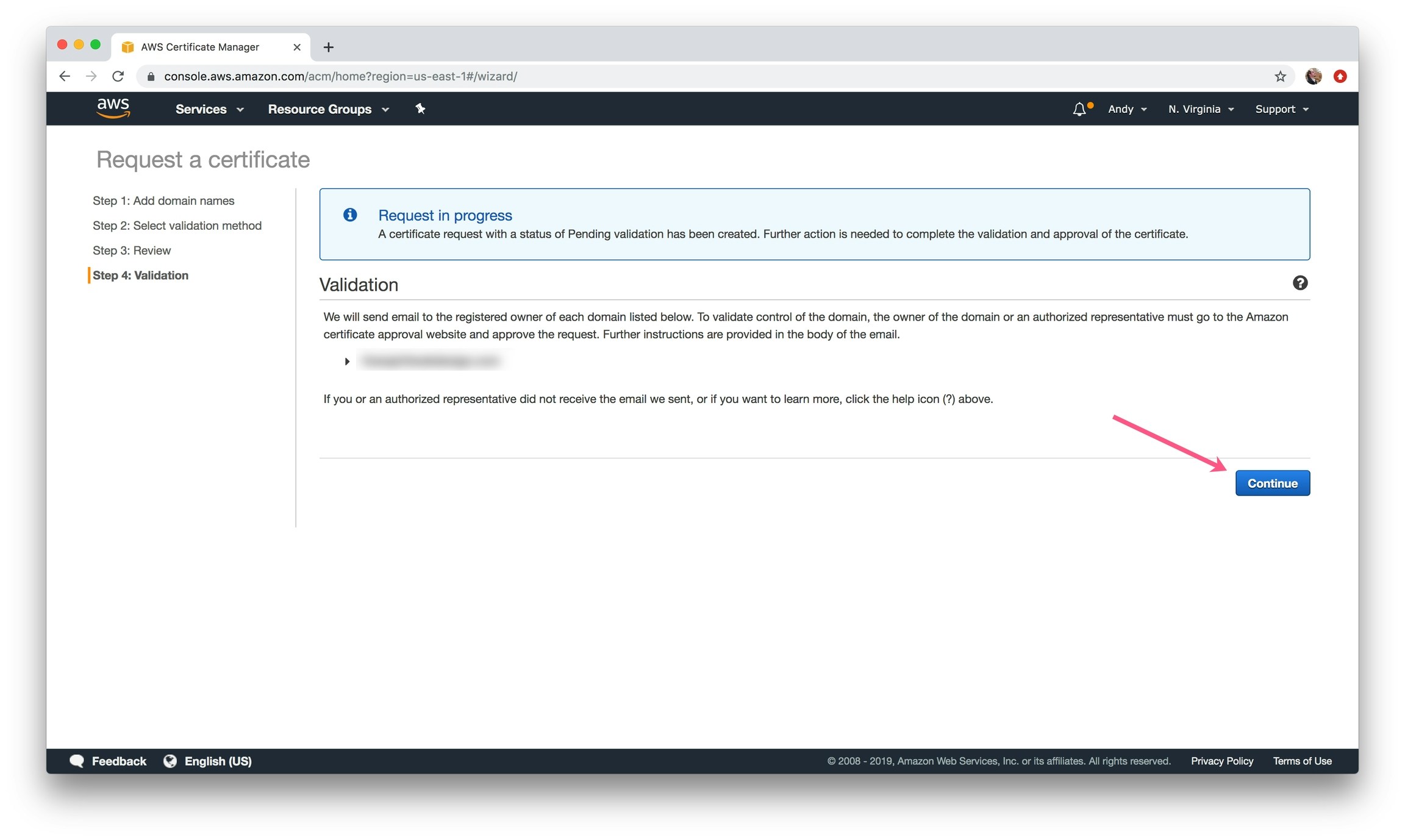
 6\) Click **Continue** to begin validation.
 7\) Confirm the Domain:
* **DNS Validation:** Create a CNAME record in the DNS configuration for each of the domains listed below.
* **Email Validation:** Receive email and follow link
7\) Confirm the Domain:
* **DNS Validation:** Create a CNAME record in the DNS configuration for each of the domains listed below.
* **Email Validation:** Receive email and follow link
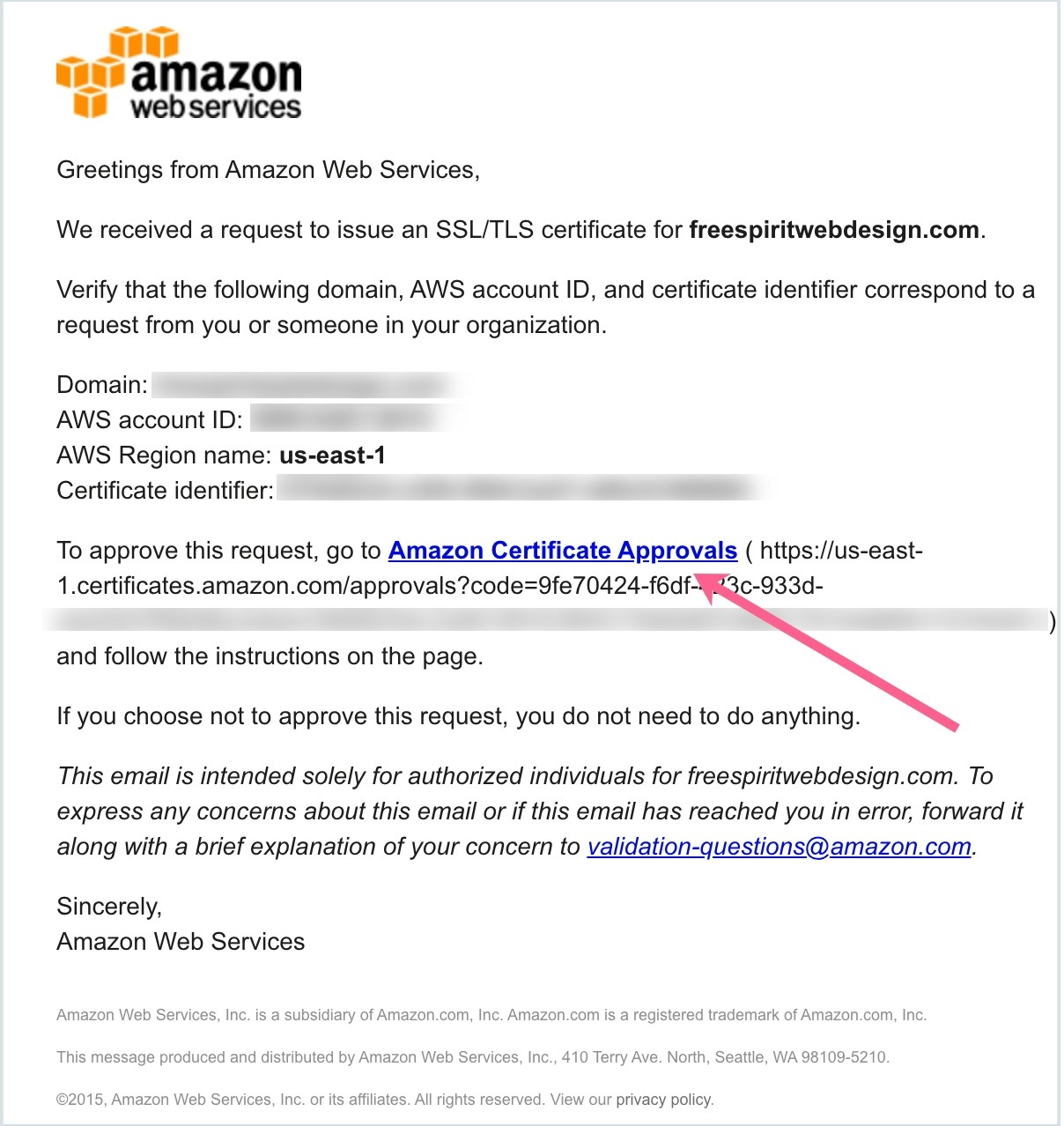 8\) Approve the Certificate
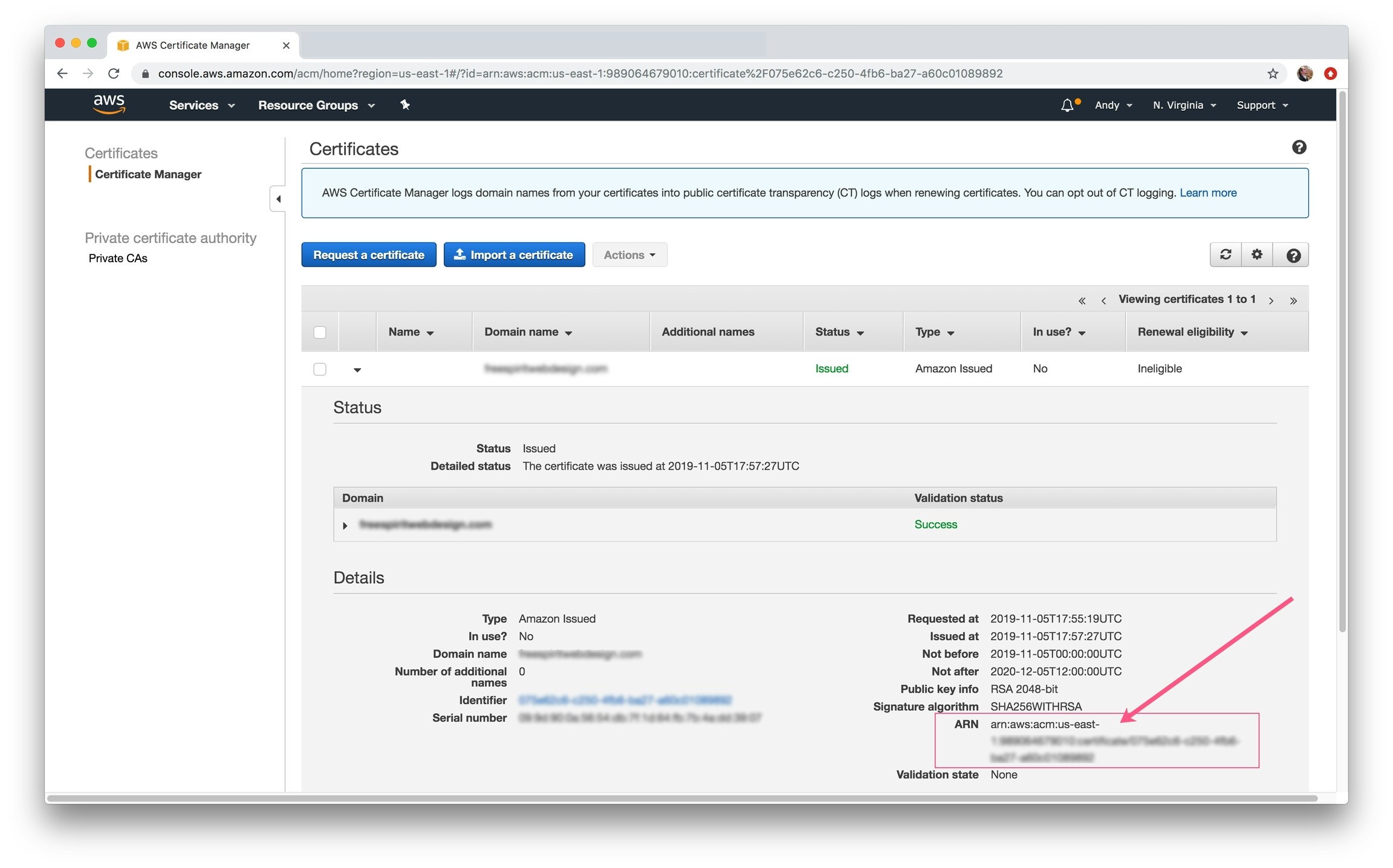
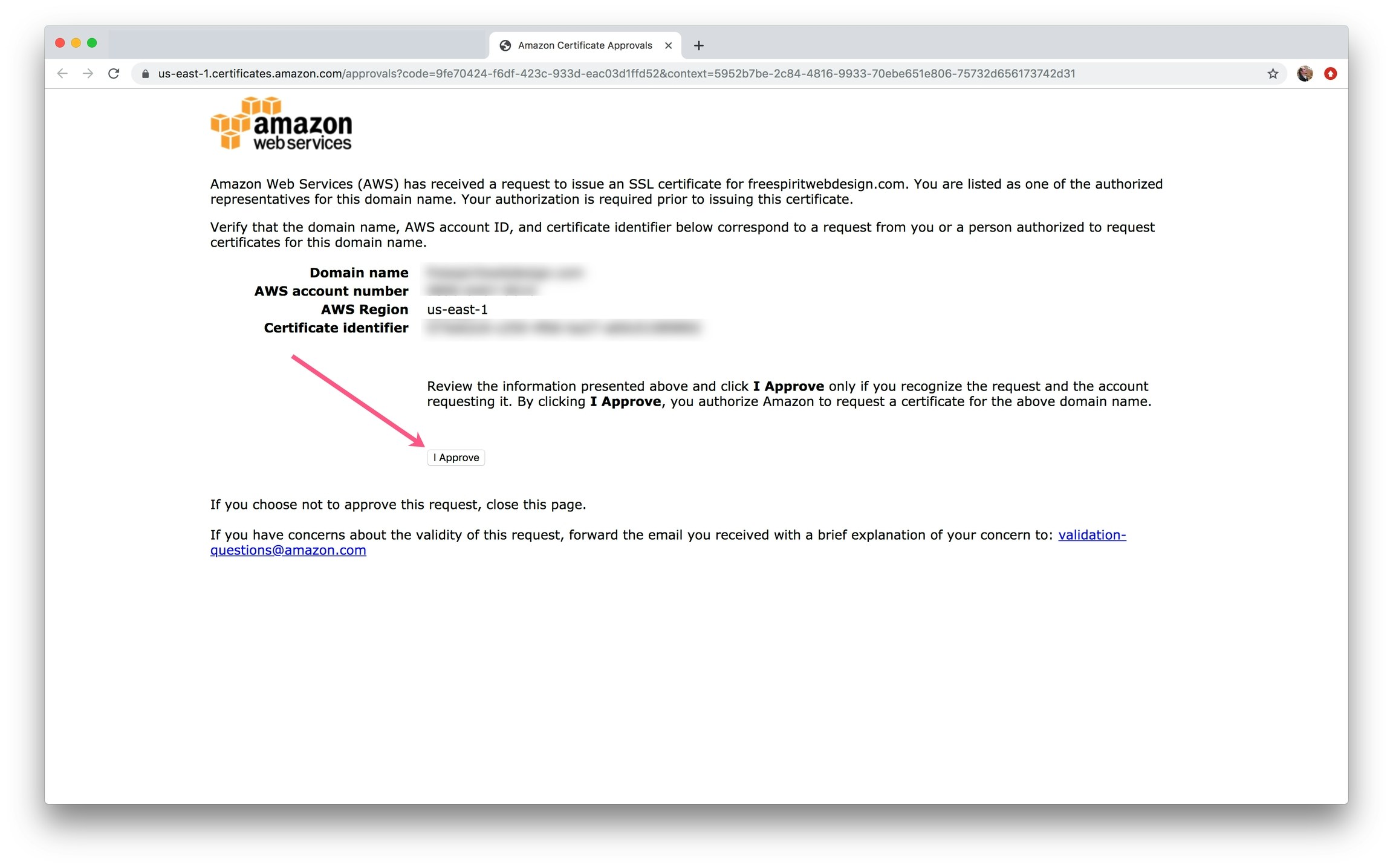 9\) In the AWS Certificate Manager, click on the domain name to view the certificate details. **Copy and paste your ARN** into the `alb_certificate_arn` field in the `terraform.tfvars` file