

Usage reporting
Daily credits, top endpoints, and chain distribution.
API keys
Create, regenerate, and delete keys.
Team
Invite members and assign roles.
Plans
Check your plan and upgrade.
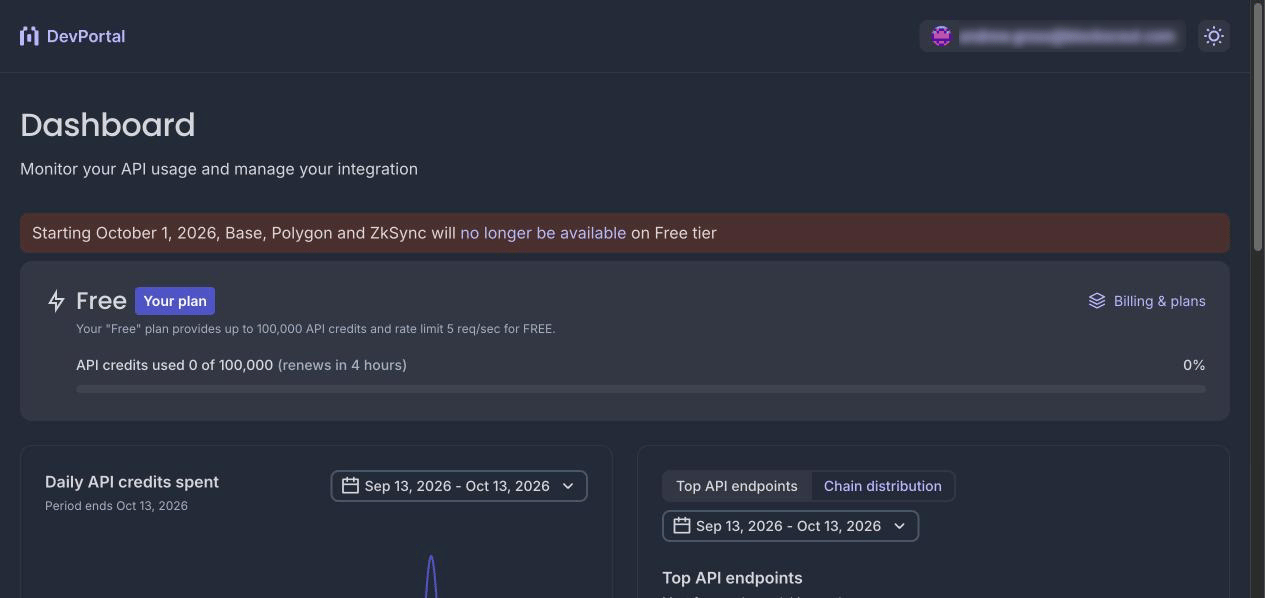
The Dev Portal dashboard
Credits spent reporting
Every Blockscout API request uses credits. The dashboard shows your consumption at three levels so you can see what you are spending and why.Plan usage
The plan card at the top of the dashboard shows your current plan, the credits you have used against your allowance, and a countdown to the next renewal. On the Free plan the allowance is 100,000 credits per day, so the meter resets daily.Daily API credits spent
The Daily API credits spent chart plots credit consumption per day. By default it covers the last 30 days. Use the date range picker to look at any other period. Below the chart, Total credits spent gives the sum for the selected range. The current day is marked as incomplete until it ends, so the last data point can still grow.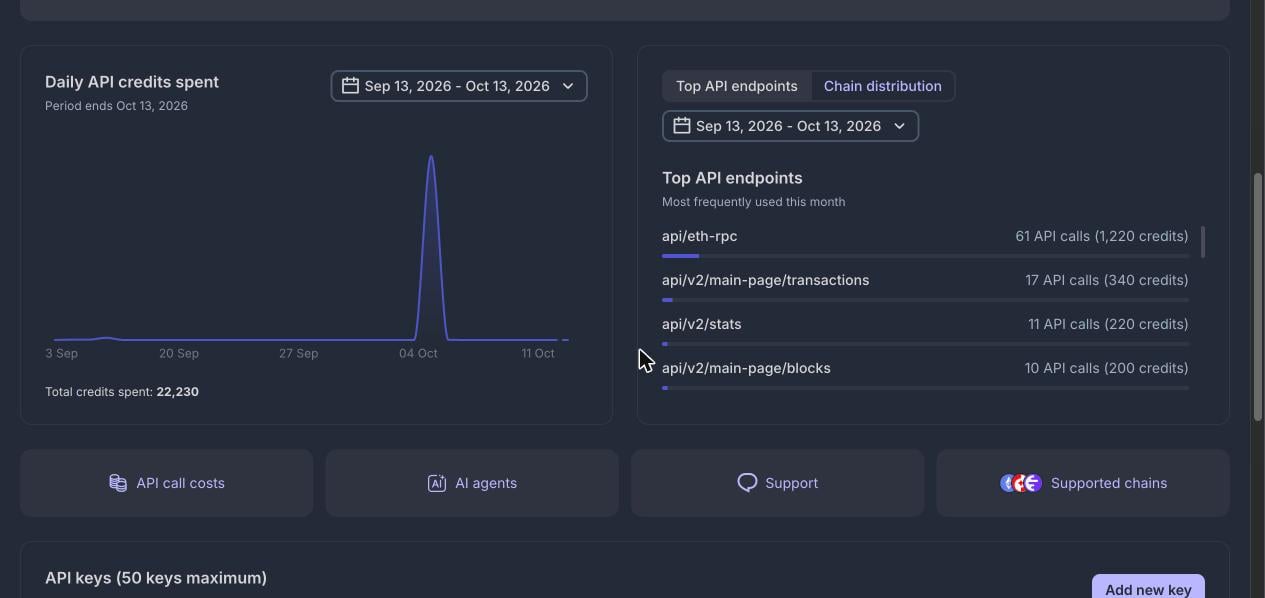
Daily API credits spent
Top API endpoints
The Top API endpoints tab ranks endpoints by how often you call them. Each row shows the endpoint path, the number of calls, and the credits those calls cost. For example,api/eth-rpc with 61 calls at 20 credits each shows as 1,220 credits.
Use it to find the endpoints that account for most of your spend.
Chain distribution
The Chain distribution tab breaks your calls down by blockchain network, with the chain name, logo, and call count. Use it to confirm traffic is going to the chains you expect. Both tabs share a date range picker, so you can compare the same period across endpoints and chains.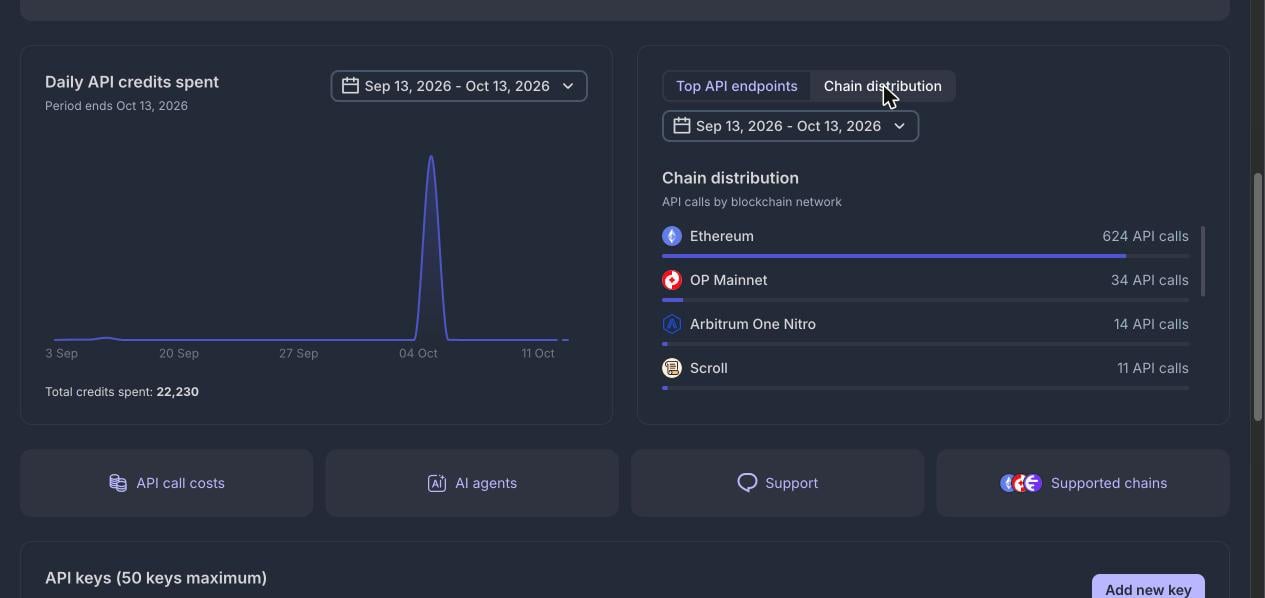
Top API endpoints and Chain distribution
API call costs
Not every endpoint costs the same. Select API call costs on the dashboard to open the full price table. Each row lists an endpoint and its cost in credits per call.- Most endpoints use the default cost of 20 credits.
- Heavier queries cost more. For example,
api/v2/search/quickcosts 25 credits, andapi/v2/advanced-filtersandapi/v2/addresses/:address_hash/coin-balance-historycost 50 credits each. - Some services have their own pricing. Name resolution calls under
bens/cost between 150 and 1,000 credits depending on the endpoint.
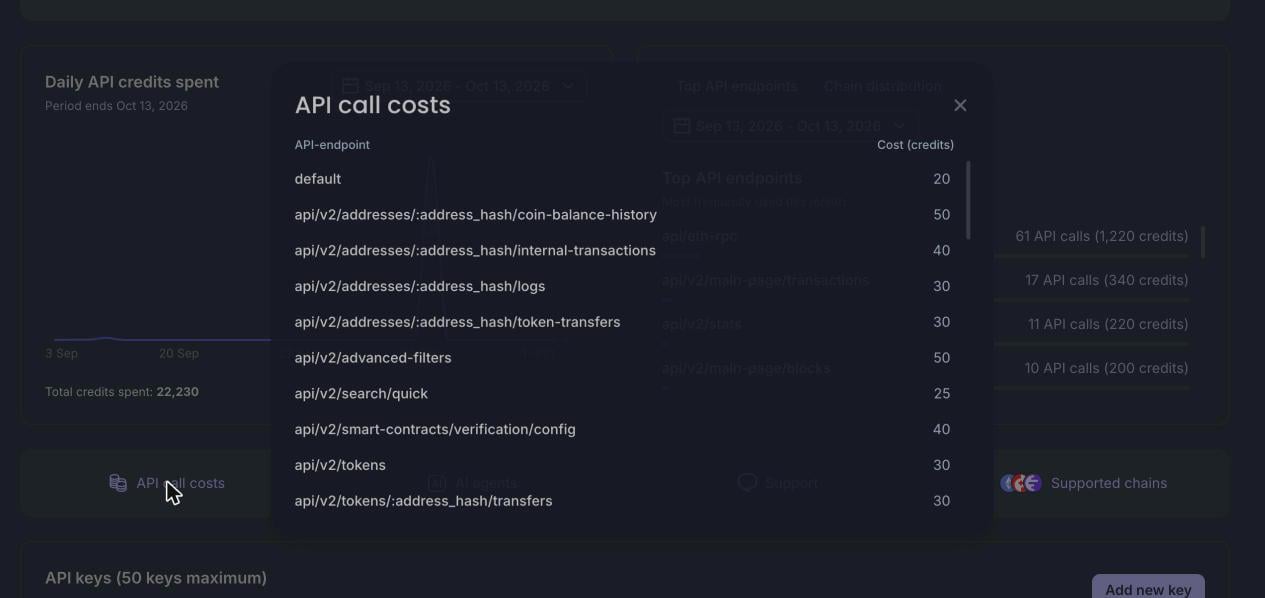
API call costs
API keys
The API keys section lists every key on your account, up to 50. A URL template above the list shows how a key is used in a request:proapi_), its status, the creation date, and the expiration date. Keys without an expiration show Valid until ∞.
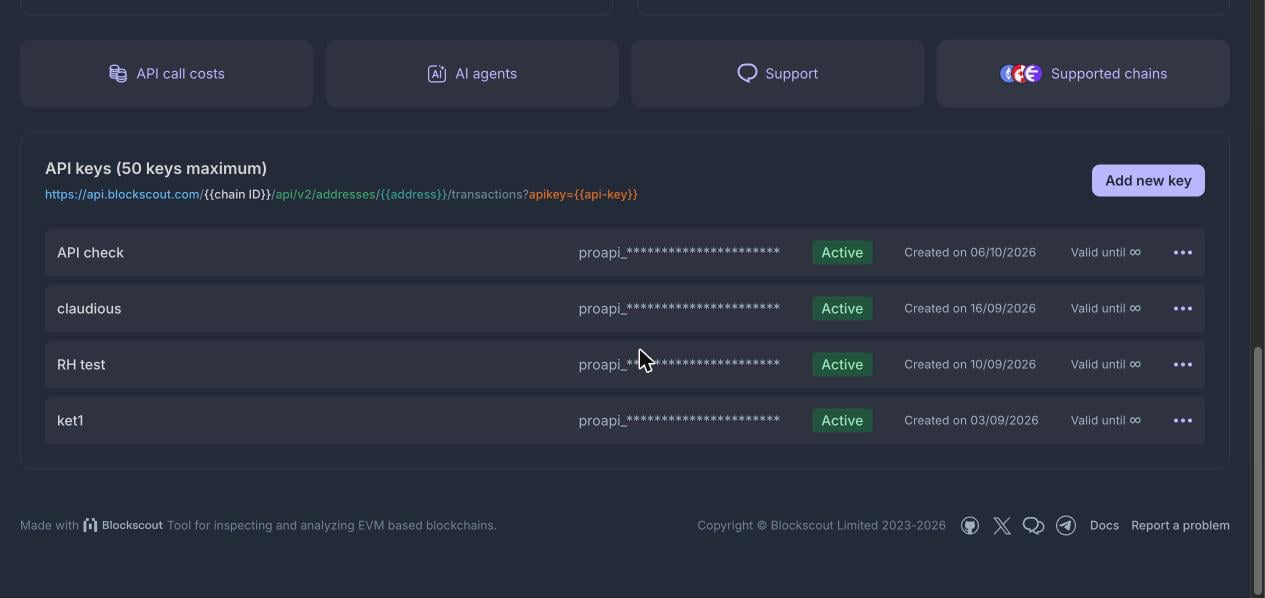
API keys list
Create a key
1
Open the form
Select Add new key in the API keys section.
2
Name the key
Enter an application name, for example
Web3 project. The name is required and helps you tell keys apart later, but is for your reference only.3
Set an expiration date (optional)
Pick a date if you want the key to stop working automatically. Leave it empty for a key that does not expire.
4
Generate the key
Select Generate API key. The key is created automatically.
5
Copy the key
Use the copy button next to the key, then select Got it!. The dialog also gives you a ready-made test link that calls the API with your new key, so you can confirm it works right away.
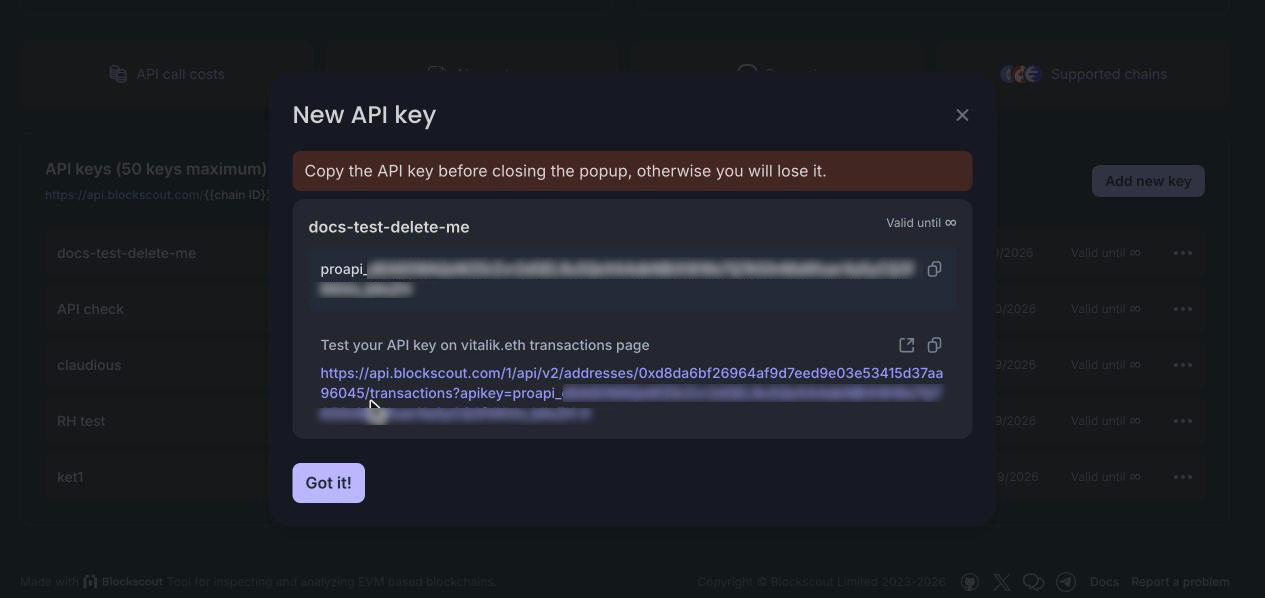
New API key dialog
Regenerate a key
Regenerate a key when it has leaked, when someone leaves the team, or as part of a regular rotation. The key keeps its name and settings and gets a new value.1
Open the key menu
Select the … menu on the key’s row, then Regenerate.
2
Confirm
The dialog warns that a new key will be created and the old one will be invalidated. Select Generate API key to continue.
3
Copy the new key
A confirmation message appears and the new key is shown once. Copy it before you close the dialog.
Delete a key
Delete keys you no longer use. Select the … menu on the key’s row, then Delete. A confirmation dialog asks whether you are sure and notes that the action cannot be undone. Select Delete to remove the key permanently.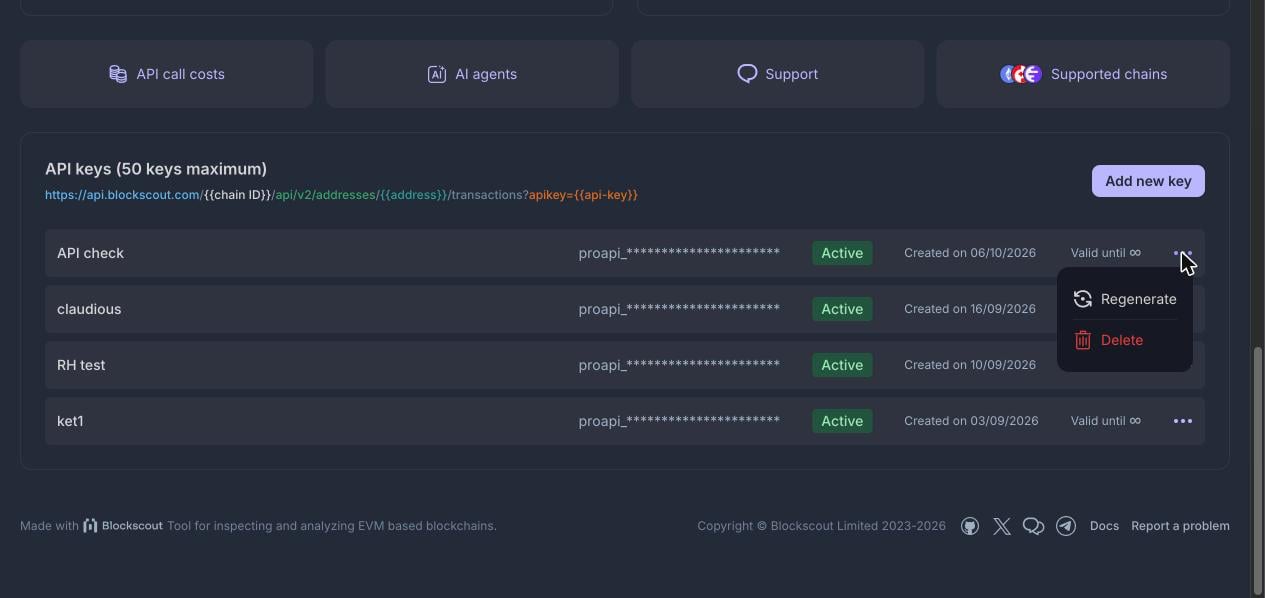
Key actions menu
Team and permissions
You can share access to a Dev Portal account with your team and control what each person can do. Open the account menu in the top right corner. It shows the teams you belong to with your role in each, a link to the billing page, and the Team entry with an Invite button.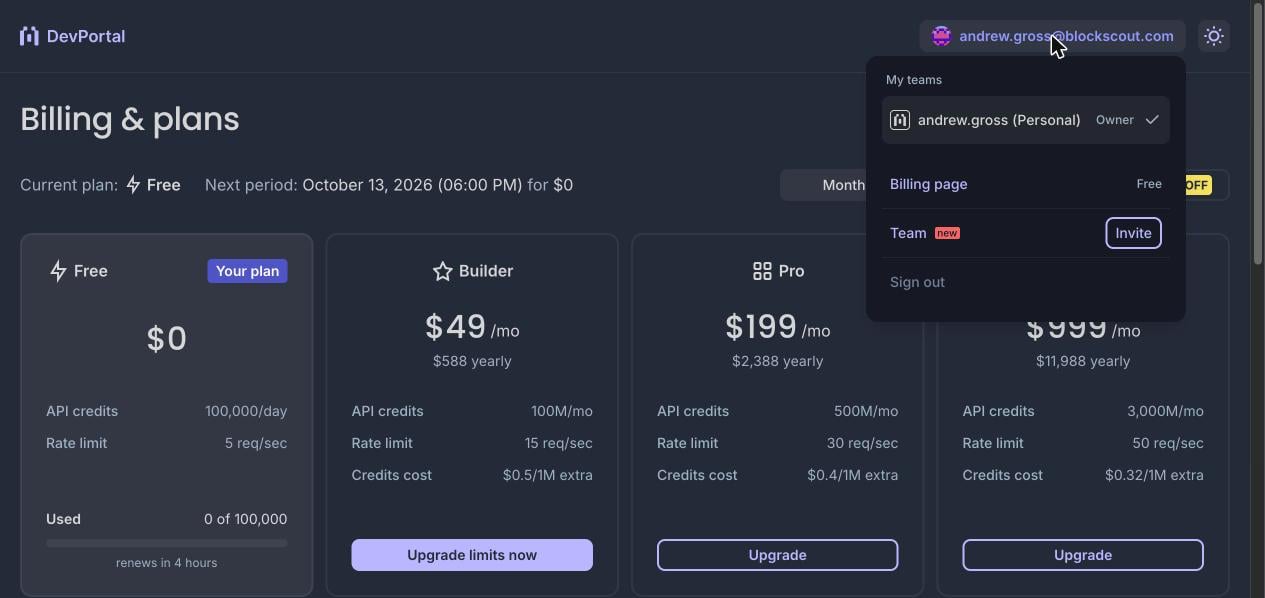
Account menu with team and invite
Invite a team member
1
Open the invite form
Select Invite next to Team in the account menu.
2
Enter an email address
Add the email of the person you want to invite.
3
Choose a role
Pick the role that matches what the person needs to do (see below).
4
Send the invitation
Select Send invitation.
Roles
The account creator is the Owner of the team.
Plan upgrades
Your current plan and usage are always visible in the plan card at the top of the dashboard. When you need higher limits, upgrade from either of two places:- Billing & plans link on the plan card.
- Billing page in the account menu.
See the Dev Portal for current prices and limits. They are shown on the Billing & plans page.
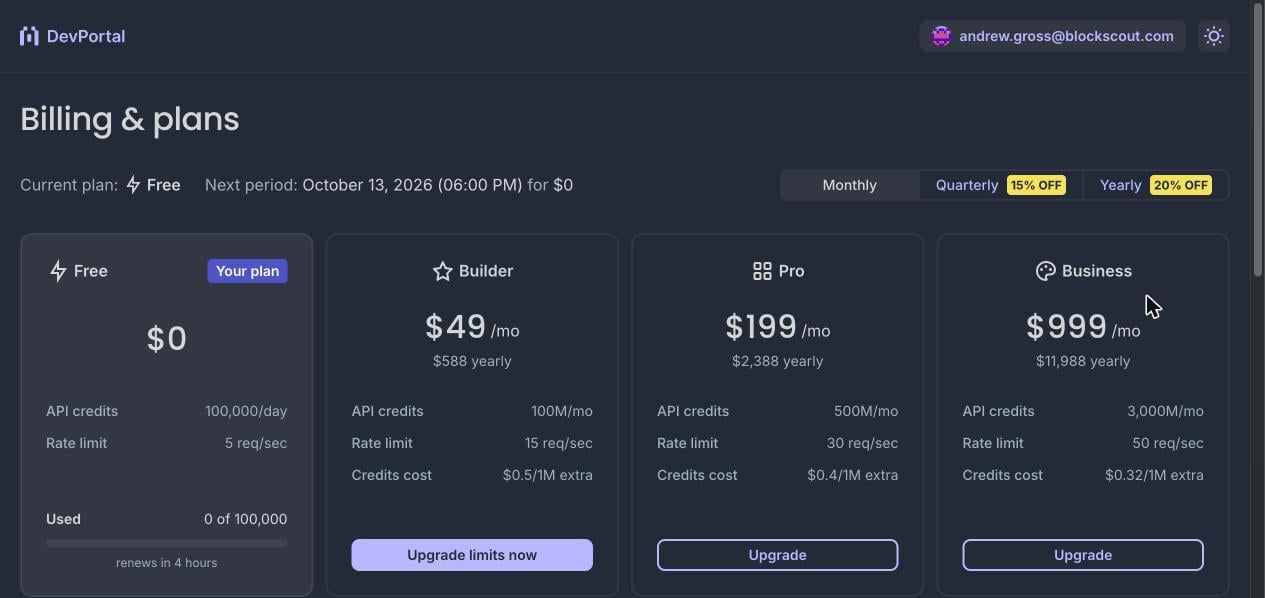
Billing & plans
More from the dashboard
- Supported chains opens a searchable list of every chain the Blockscout API supports, with chain IDs. Filter by mainnet or testnet, or use Request chain support to ask for a new network.
- AI agents opens a page with copy-paste commands to install the Blockscout
web3-devskill in Claude, Codex, OpenClaw, and other agents. - Support links to the Blockscout API docs, Discord, the Telegram community, and the chain request form.